Table of Contents
What you need
- A Canva account and a resume master design.
- Canva API or Canva Connect access that can copy/inspect designs and export a design.
- A local n8n installation.
- Google Drive credentials connected to n8n.
- A Drive folder for finalized PDFs.
- One factual source of truth for your experience: a base resume, project history, skills, and measurable results.
- A way to retrieve the job description. Manual copy/paste is enough for a first version.
Keep the n8n webhook bound to localhost while building and testing. Do not expose the resume-finalization endpoint to the public internet.
The rules that prevent bad resumes
These rules matter more than the specific tools:
- Never invent experience, tools, qualifications, or metrics.
- Use the job description to change emphasis and wording, not to manufacture a background.
- Duplicate the Canva master. Never tailor the master itself.
- Shorten copy before shrinking fonts or changing the layout.
- Review factual accuracy and visual layout before exporting.
- Treat the Drive PDF as the completion signal. A successful webhook response is not proof that the file exists.
Part 1: Build the tailoring process
Step 1: Select a role
Do not start by writing a resume for every interesting posting. First rank the role against:
- Experience fit
- Compensation
- Remote or location compatibility
- Seniority
- Strategic value
- Missing or weak qualifications
For the selected role, capture:
- Company
- Exact role title
- Application URL
- Employer priorities
- Repeated ATS language
- Likely objections
- Strongest matching evidence from your background
- Qualifications you do not have
If no role clears your fit threshold, keep searching. A polished resume for a weak match is still a weak application.
Step 2: Separate evidence from positioning
Create two columns before drafting:
| Evidence you can prove | How to position it for this role |
|---|---|
| Existing project, responsibility, result, or tool | Employer language that accurately describes its relevance |
This prevents a common failure mode: copying keywords from the posting into claims that are not supported by your history.
Step 3: Draft section by section
Tailor the following sections independently:
- Headline
- Summary
- Core skills
- Experience titles and bullets
- Additional skills
- Selected projects
- Additional experience
Use the employer's language naturally. Lead with measurable outcomes that are actually supported by your source material. For a fixed Canva layout, three concise, high-value bullets are usually better than five bullets that wrap into the next section.
Here's the prompt I used as a starting point; go ahead and copy/paste it into your skill .md file, or ask your LLM to create one using it.
You are tailoring a resume for the role below.

Rules:
- Use only facts in the source material.
- Do not invent tools, responsibilities, dates, metrics, credentials, or outcomes.
- If a requirement is unsupported, omit it or mark it as a gap.
- Prefer the employer's language when it accurately describes the evidence.
- Keep bullets concise enough for a fixed two-page Canva layout.

Job description:
[PASTE JOB DESCRIPTION]

Authoritative resume sources:
[PASTE BASE RESUME, PROJECT HISTORY, SKILLS, AND RESULTS]

Return:
1. Fit summary and gaps
2. Positioning strategy
3. Tailored content by resume section
4. A list of claims that require confirmation
The output is a draft, not an automatic truth machine. Resolve every item in the confirmation list before production.
Part 2: Produce the Canva resume
- Copy the master design.
- Rename the copy using this format:
[Company] - [Role] - [Your Name] Resume - Populate the duplicate's placeholders.
- Preserve the existing page structure, groups, typography, and spacing.
- Commit/save the editing transaction.
- Confirm the saved title and URL point to the duplicate, not the master.
For fixed-layout templates, treat each section as an allocation zone. If a bullet overruns its zone, rewrite it shorter or remove lower-priority material. Do not solve every overflow problem by making the entire resume smaller; that produces a technically complete but unpleasant document.
Part 3: Run production QA
Check the saved Canva duplicate for:
- Placeholder text left behind
- Unsupported claims
- Wrong company or role name
- Incorrect dates
- Text overlap or overflow
- Awkward wrapping
- Misaligned grouped elements
- Accidental font or spacing changes
- Duplicated content
- Broken page breaks
- Large blank areas caused by missing content
Repeat the edit-and-check cycle until both factual and visual QA pass. Only then trigger finalization.
Part 4: Build the n8n finalization workflow
The workflow accepts a small payload and performs the slow, stateful handoff:
{
  "design_id": "CANVA_DESIGN_ID",
  "company": "COMPANY",
  "role": "ROLE"
}
Recommended node flow
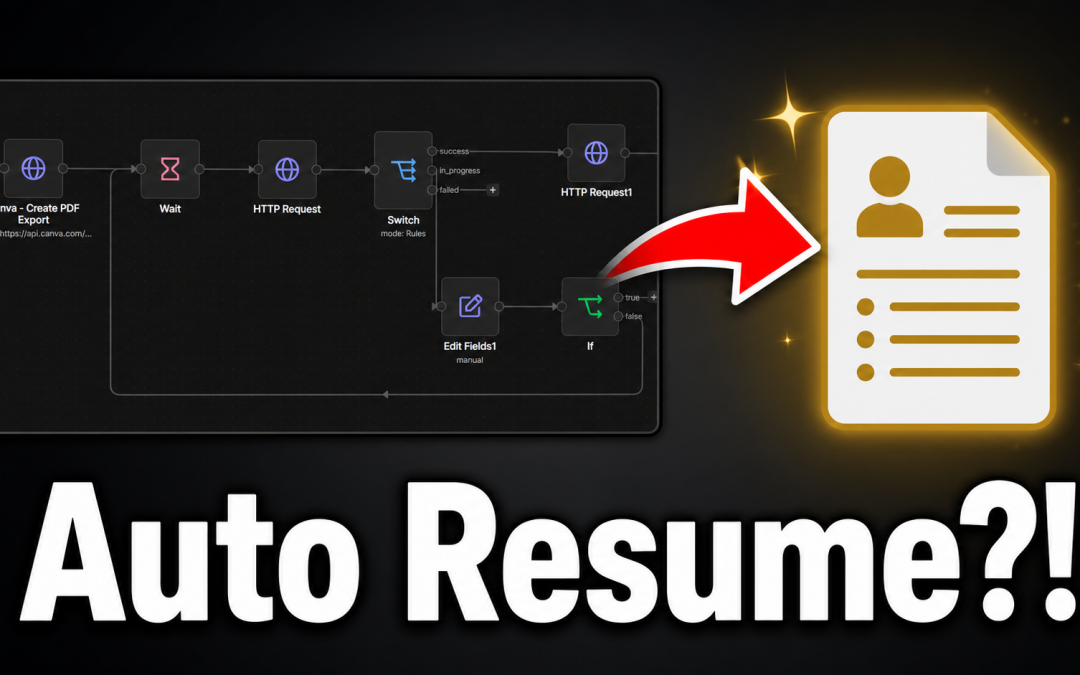
- Webhook —
POST /webhook/finalize-resume - Validate input — require non-empty
design_id,company, androle. - Canva export request — request a PDF export for the exact design ID.
- Wait or poll — if Canva returns an asynchronous export job, retain its job ID and poll until the export is complete.
- Download PDF — retrieve the finished PDF binary.
- Build filename —
[Company] - [Role] - [Your Name] Resume.pdf. - Google Drive upload — upload the binary into the finalized-resumes folder.
- Verify upload — search the target folder for the exact filename and confirm a file ID/link exists.
- Respond — return a success payload only after Drive verification; otherwise return the failing stage and status.
The exact Canva request nodes depend on the current Canva API/Connect version. Keep those credentials in n8n's credential store, never in the webhook body, prompts, screenshots, or source files.
Local endpoint
Use a production webhook on the local n8n instance:
http://127.0.0.1:5678/webhook/finalize-resume
Use /webhook-test/ only while actively testing the workflow. The production workflow must be published before relying on /webhook/.
Trigger it from PowerShell
The request can be sent with:
$payload = @{
  design_id = "CANVA_DESIGN_ID"
  company   = "COMPANY"
  role      = "ROLE"
} | ConvertTo-Json

Invoke-RestMethod `
  -Method Post `
  -Uri "http://127.0.0.1:5678/webhook/finalize-resume" `
  -ContentType "application/json" `
  -Body $payload
Note: don't confuse the Canva share slug with the Canva API design ID (you'll have a bad time).
Use the actual design ID returned by the copy, inspect, or design operation. (you'll have a good time.)
Part 5: Verify completion
After n8n reports that the export/upload path finished:
- Open the target Google Drive folder.
- Find the exact expected filename.
- Confirm it is a newly created PDF, not just an export job or a local download.
- Save the persistent Drive link.
The completion state is:
Canva duplicate saved
  + factual QA passed
  + visual QA passed
  + PDF exists in the correct Drive folder
  = finalized resume
If the Drive file is missing, report the workflow as incomplete and inspect the latest n8n execution. Common failure points are Canva authorization, export polling, binary handling, Drive authorization, or uploading to the wrong folder.
Failure handling
- Connection refused: start local n8n and retry once.
- Webhook not registered: publish the workflow and use
/webhook/, not/webhook-test/. - Canva authorization failure: reconnect the Canva credential.
- Drive authorization failure: reconnect the Google Drive credential.
- Missing PDF: inspect the latest execution and identify the failing node.
- Duplicate filename: keep both files unless the owner explicitly requests deletion.
- Layout overflow: shorten or remove low-priority copy before changing typography.
- Unsupported claim: remove it or return to the source material for confirmation.
Start Small & Iterate
Start with a manual trigger and one resume to make sure this loop works:
one job posting -> one tailored duplicate -> one verified Drive PDF
Only once that works should you add job board discovery, batching, or application automation. Keep the review layer between Canva production and the final resume unless you have explicitly designed, and tested an automatic-bypass mode. And this is a given, but I'll say it anyways: NEVER automate signatures, work authorization, compensation, CAPTCHA handling, or final submission. If you stick by that rule, you'll be able to 10x your output while keeping your data safe.
Want The Full Guide?
Get step by step instructions, prompts, and .md files ready for your LLM of choice to learn and execute. We also cover some common errors you might run into, and how to fix them.
Did we mention its FREE?